Showing posts with label Azure Data Factory. Show all posts

Tuesday, 8 October 2019

Azure Data Factory Mapping Data Flows are now generally available

In today’s data-driven world, big data processing is a critical task for every organization. To unlock transformational insights and embrace a data-driven culture, companies need tools to help them easily integrate and transform data at scale, without requiring specialized skills.

Today we’re announcing the general availability of the Mapping Data Flows feature of Azure Data Factory (ADF), our productive and trusted hybrid integration service. Data Factory now empowers users with a code-free, serverless environment that simplifies ETL in the cloud and scales to any data size, no infrastructure management required.

Built to handle all the complexities and scale challenges of big data integration, Mapping Data Flows allow users to quickly transform data at scale. Build resilient data pipelines in an accessible visual environment with our browser-based designer and let ADF handle the complexities of Spark execution.

Mapping Data Flows simplifies data processing, with built-in capabilities to handle unpredictable data schemas and to maintain resilience to changing input data. With Mapping Data Flows, customers like Nielsen are empowering their employees to turn data into insights, regardless of data complexity or the coding skills of their teams.

"Mapping Data Flows have been instrumental in enabling Nielsen's analytics teams to perform data cleansing and preparation in a user-friendly and code-free environment, and allow us to deliver insights to our clients in a faster and more automated way."

Azure Data Factory, Azure Learning, Azure Certifications, Azure Guides, Azure Study Materials

Accelerate time to insights by focusing on building your business logic without worrying about managing and maintaining server clusters or writing code to build pipelines. Easily perform ETL tasks like loading fact tables, maintaining slowly changing dimensions, aggregating semi-structured big data, matching data using fuzzy matching, and preparing data for modeling. With our intuitive visual interface, design your data transformation logic as easy-to-read graphs, and build libraries of transformation routines to easily turn raw data into business insights.

Work the way you want – code-first, or entirely code-free with Mapping Data Flows. Use built-in transformations to perform common actions like joining, aggregating, pivoting, and sorting. Customize these transformations with the expression builder, which includes auto-complete and comprehensive online help.

As you build your logical graphs, validate in real-time using ADF’s live data preview capability. Features like null counts, value distributions, and standard deviation provide immediate insights into your data.

Azure Data Factory, Azure Learning, Azure Certifications, Azure Guides, Azure Study Materials

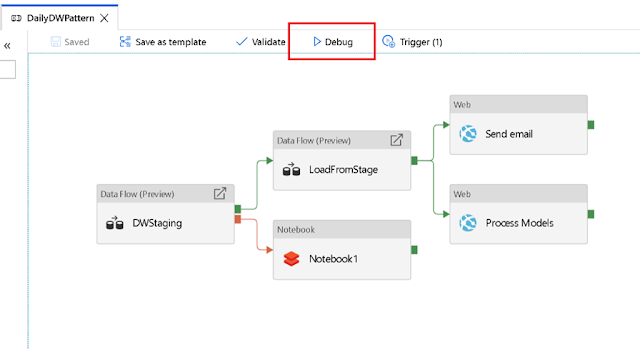
Finally, build pipelines and debug your new ETL process end-to-end using the drag and drop pipeline builder with interactive debugging.

Azure Data Factory, Azure Learning, Azure Certifications, Azure Guides, Azure Study Materials

Build schedules for your pipelines and monitor your data flow executions from the ADF monitoring portal. Easily manage data availability SLAs with ADF’s rich availability monitoring and alerts, and leverage built-in CI/CD capabilities to save and manage your flows in a managed DataOps environment. And establish alerts and view execution plans to validate that your logic is performing as planned as you tune your data flows.

Mapping Data Flows is a game-changer for any organization looking to make data integration and transformation faster, easier, and accessible to everyone.

Wednesday, 27 March 2019

Clean up files by built-in delete activity in Azure Data Factory

Azure Data Factory (ADF) is a fully-managed data integration service in Azure that allows you to iteratively build, orchestrate, and monitor your Extract Transform Load (ETL) workflows. In the journey of data integration process, you will need to periodically clean up files from the on-premises or the cloud storage server when the files become out of date. For example, you may have a staging area or landing zone, which is an intermediate storage area used for data processing during your ETL process. The data staging area sits between the data source stores and the data destination store. Given the data in staging areas are transient by nature, you need to periodically clean up the data in the staging area after the ETL process has being completed.

We are excited to share ADF built-in delete activity, which can be part of your ETL workflow to deletes undesired files without writing code. You can use ADF to delete folder or files from Azure Blob Storage, Azure Data Lake Storage Gen1, Azure Data Lake Storage Gen2, File System, FTP Server, sFTP Server, and Amazon S3.

You can find ADF delete activity under the “Move & Transform” section from the ADF UI to get started.

Azure Data Factory, Azure Study Materials, Azure Learning, Azure Guides, Azure Certifications

1. You can either choose to delete files or delete the entire folder. The deleted files and folder name can be logged in a csv file.

Azure Data Factory, Azure Study Materials, Azure Learning, Azure Guides, Azure Certifications

Azure Data Factory, Azure Study Materials, Azure Learning, Azure Guides, Azure Certifications

2. The file or folder name to be deleted can be parameterized, so that you have the flexibility to control the behavior of delete activity in your data integration flow.

Azure Data Factory, Azure Study Materials, Azure Learning, Azure Guides, Azure Certifications

3. You can delete expired files only rather than deleting all the files in one folder. For example, you may want to only delete the files which were last modified more than 30 days ago.

Azure Data Factory, Azure Study Materials, Azure Learning, Azure Guides, Azure Certifications

4. You can start from ADF template gallery to quickly deploy common use cases involving delete activity.

Azure Data Factory, Azure Study Materials, Azure Learning, Azure Guides, Azure Certifications

Saturday, 23 February 2019

PyTorch on Azure: Deep learning in the oil and gas industry

Drilling for oil and gas is one of the most dangerous jobs on Earth. Workers are exposed to the risk of events ranging from small equipment malfunctions to entire off shore rigs catching on fire. Fortunately, the application of deep learning in predictive asset maintenance can help prevent natural and human made catastrophes.

Azure Certification, Azure Tutorial and Material, Azure Guides, Azure Learning

We have more information than ever on our equipment thanks to sensors and IoT devices, but we are still working on ways to process the data so it is valuable for preventing these catastrophic events. That’s where deep learning comes in. Data from multiple sources can be used to train a predictive model that helps oil and gas companies predict imminent disasters, enabling them to follow a proactive approach.

Using the PyTorch deep learning framework on Microsoft Azure, Accenture helped a major oil and gas company implement such a predictive asset maintenance solution. This solution will go a long way in protecting their staff and the environment.

What is predictive asset maintenance?


Predictive asset maintenance is a core element of the digital transformation of chemical plants. It is enabled by an abundance of cost-effective sensors, increased data processing, automation capabilities, and advances in predictive analytics. It involves converting information from both real-time and historical data into simple, accessible, and actionable insights. This is in order to enable the early detection and elimination of defects that would otherwise lead to malfunction. For example, by simply detecting an early defect in a seal that connects the pipes, we can prevent a potential failure that can result in a catastrophic collapse of the whole gas turbine.

Under the hood, predictive asset maintenance combines condition-based monitoring technologies, statistical process control, and equipment performance analysis to enable data from disparate sources across the plant to be visualized clearly and intuitively. This allows operations and equipment to be better monitored, processes to be optimized, better controlled, and energy management to be improved.

It is worth noting that the predictive analytics at the heart of this process do not tell the plant operators what will happen in the future with complete certainty. Instead, they forecast what is likely to happen in the future with an acceptable level of reliability. It can also provide “what-if” scenarios and an assessment of risks and opportunities.

Azure Certification, Azure Tutorial and Material, Azure Guides, Azure Learning

Figure 1 – Asset maintenance maturity matrix (Source: Accenture)

The challenge with oil and gas

Event prediction is one of the key elements in predictive asset maintenance. For most prediction problems there are enough examples of each pattern to create a model to identify them. Unfortunately, in certain industries like oil and gas where everything is geared towards avoiding failure, the sought-after examples of failure patterns are rare. This means that most standard modelling approaches either perform no better than experienced humans or fail to work at all.

Accenture’s solution with PyTorch and Azure

Although there only exists a small number of failure examples, there exists a wealth of times series and inspection data that can be leveraged.

Azure Certification, Azure Tutorial and Material, Azure Guides, Azure Learning

Figure 2 – Approach for Predictive Maintenance (Source : Accenture)

After preparing the data in stage one, a two-phase deep learning solution was built with PyTorch in stage two. First, a recurrent neural network (RNN) was trained in combination with a long short-term memory (LSTM) architecture which is phase one of stage two. The neural network architecture used in the solution was inspired by Koprinkova-Hristova et al 2011 and Aydin and Guldamlasioglu 2017. This RNN timeseries model forecasts important variables, such as the temperature of an important seal. These forecasts are then fed into a classifier algorithm (random forest) to identify the variable is outside of the safe range and if so, the algorithm produces a ranking of potential causes which experts can examine and address. This effectively enables experts to address the root causes of potential disasters before they occur.

The following is a diagram of the system that was used for training and execution of the solution:  

Azure Certification, Azure Tutorial and Material, Azure Guides, Azure Learning

Figure 3 - System Architecture

The architecture above was chosen to ensure the customer requirement of maximum flexibility in modeling, training, and in the execution of complex machine learning workflows are using Microsoft Azure. At the time of implementation, the services that fit these requirements were HDInsights and Data Science Virtual Machines (DSVM). If the project was implemented today, Azure Machine Learning service would have been used for training/inferencing with HDInsights or Azure Databricks for data processing.

PyTorch was used due to the extreme flexibility in designing the computational execution graphs, and not being bound into a static computation execution graph like in other deep learning frameworks. Another important benefit of PyTorch is that standard python control flow can be used and models can be different for every sample. For example, tree-shaped RNNs can be created without much effort. PyTorch also enables the use of Python debugging tools, so programs can be stopped at any point for inspection of variables, gradients, and more. This flexibility was very beneficial during training and tuning cycles.

The optimized PyTorch solution resulted in faster training time by over 20 percent compared to other deep learning frameworks along with 12 percent faster inferencing. These improvements were crucial in the time critical environment that team was working in. Please note, that the version tested was PyTorch 0.3.

Overview of benefits of using PyTorch in this project:

◈ Training time
     ◈ Reduction in average training time by 22 percent using PyTorch on the outlined Azure architecture.
◈ Debugging/bug fixing
     ◈ The dynamic computational execution graph in combination with Python standard features reduced the overall development time by 10 percent.
◈ Visualization
     ◈ The direct integration into Power BI enabled a high end-user acceptance from day one.
◈ Experience using distributed training
     ◈ The dynamic computational execution graph in combination with flow control allowed us to create a simple distributed training model and gain significant improvements in overall training time.

How did Accenture operationalize the final model?


Scalability and operationalization were key design considerations from day one of the project, as the customer wanted to scale out the prototype to several other assets across the fleet. As a result, all components within the system architecture were chosen with those as criteria. In addition, the customer wanted to have the ability to add more data sources using Azure Data Factory. Azure Machine Learning service and its model management capability were used to operationalize the final model. The following diagram illustrates the deployment workflow used.

Azure Certification, Azure Tutorial and Material, Azure Guides, Azure Learning

Figure 4 – Deployment workflow

The deployment model was also integrated into a Continuous Integration/Continuous Delivery (CI/CD) workflow as depicted below.

Azure Certification, Azure Tutorial and Material, Azure Guides, Azure Learning

PyTorch on Azure: Better together


The combination of Azure AI offerings with the capabilities of PyTorch proved to be a very efficient way to train and rapidly iterate on the deep learning architectures used for the project. These choices yielded a significant reduction in training time and increased productivity for data scientists.

Azure is committed to bringing enterprise-grade AI advances to developers using any language, any framework, and any development tool. Customers can easily integrate Azure AI offerings into any part of their machine learning lifecycles to productionize their projects at scale, without getting locked into any one tool or platform.

Tuesday, 15 January 2019

Create alerts to proactively monitor your data factory pipelines

Data integration is complex and helps organizations combine data and business processes in hybrid data environments. The increase in volume, variety, and velocity of data has led to delays in monitoring and reacting to issues. Organizations want to reduce the risk of data integration activity failures and the impact it cause to other downstream processes. Manual approaches to monitoring data integration projects are inefficient and time consuming. As a result, organizations want to have automated processes to monitor and manage data integration projects to remove inefficiencies and catch issues before they affect the entire system. Organizations can now improve operational productivity by creating alerts on data integration events (success/failure) and proactively monitor with Azure Data Factory.

To get started, simply navigate to the Monitor tab in your data factory, select Alerts & Metrics, and then select New Alert Rule.

Azure Certification, Azure Learning, Azure Guides, Azure Tutorial and Material

Select the target data factory metric for which you want to be alerted.

Azure Certification, Azure Learning, Azure Guides, Azure Tutorial and Material

Azure Certification, Azure Learning, Azure Guides, Azure Tutorial and Material

Then, configure the alert logic. You can specify various filters such as activity name, pipeline name, activity type, and failure type for the raised alerts. You can also specify the alert logic conditions and the evaluation criteria.

Azure Certification, Azure Learning, Azure Guides, Azure Tutorial and Material

Finally, configure how you want to be alerted. Different mechanisms such email, SMS, voice, and push notifications are supported.

Azure Certification, Azure Learning, Azure Guides, Azure Tutorial and Material

Creating alerts will ensure 24/7 monitoring of your data integration projects and make sure that you are notified of issues before they potentially corrupt your data or affect downstream processes. This helps your organizations to be more agile and increase confidence in your overall data integration processes. This ultimately results in increasing overall productivity in your organizations, and guarantee that you deliver on your SLAs.

Tuesday, 10 July 2018

Monitor Azure Data Factory pipelines using Operations Management Suite

Azure Tutorial and Material, Azure Certification, Azure Study Materials, Azure Guides

Data Integration solutions can be complex with many moving parts involving complex data factories with multiple pipelines. Monitoring provides data to ensure that your data factory pipelines stay up and running in a healthy state. It also helps you to stave off potential problems or troubleshoot past ones. In addition, you can use monitoring data to gain deep insights about your application. This knowledge can help you to improve application performance or maintainability, or automate actions that would otherwise require manual intervention.

Azure Data Factory (ADF) integration with Azure Monitor allows you to route your data factory metrics to Operations and Management (OMS) Suite. Now, you can monitor the health of your data factory pipelines using ‘Azure Data Factory Analytics’ OMS service pack available in Azure marketplace.

Azure Tutorial and Material, Azure Certification, Azure Study Materials, Azure Guides

Azure Tutorial and Material, Azure Certification, Azure Study Materials, Azure Guides

Azure Data Factory OMS pack provides you a summary of overall health of your Data Factory, with options to drill into details and to troubleshoot unexpected behavior patterns. With rich, out of the box views you can get insights into key processing including:

◈ At a glance summary of data factory pipeline, activity and trigger runs
◈ Ability to drill into data factory activity runs by type
◈ Summary of data factory top pipeline, activity errors

Azure Tutorial and Material, Azure Certification, Azure Study Materials, Azure Guides

You can also dig deeper into each of the pre-canned view, look at the Log Analytics query, edit it as per your requirement. You can also raise alerts via OMS.

Azure Tutorial and Material, Azure Certification, Azure Study Materials, Azure Guides

You can route metrics from different data factories to the same OMS account and do monitoring across data factories as well. Simply enable the diagnostics settings for your data factory and route data to your Log Analytics workspace. 

Tuesday, 15 May 2018

Enhance productivity using Azure Data Factory Visual Tools

With Azure Data Factory (ADF) visual tools, we listened to your feedback and enabled a rich, interactive visual authoring and monitoring experience. It allows you to iteratively create, configure, test, deploy and monitor data integration pipelines without any friction. The main goal of the ADF visual tools is to allow you to be productive with ADF by getting pipelines up and running quickly without requiring to write a single line of code.

We continue to add new features to increase productivity and efficiency for both new and advanced users with intuitive experiences. You can get started by clicking the Author and Monitor tile in your provisioned v2 data factory blade.

Azure Tutorials and Materials, Azure Guides, Azure Learning, Azure Certifications, Azure Data Factory

Check out some of the exciting new features enabled with data factory visual tools since public preview (January 2018):

Latest data factory updates


Follow exciting new updates to the data factory service.

Azure Tutorials and Materials, Azure Guides, Azure Learning, Azure Certifications, Azure Data Factory

View Data Factory deployment region, and resource group. Then, switch to another data factory that you have access to.

Azure Tutorials and Materials, Azure Guides, Azure Learning, Azure Certifications, Azure Data Factory

Visual authoring


More data connectors

Ingest data at scale from more than 70 on-premises/cloud data sources in a serverless fashion.

Azure Tutorials and Materials, Azure Guides, Azure Learning, Azure Certifications, Azure Data Factory

New activities in toolbox

■ Notebook Activity: Ingest data at scale using more than 70 on-premises/cloud data sources and prepare/transform the ingested data in Azure Databricks as a Notebook activity step in data factory pipelines.
■ Filter Activity: Filter data ingested from more than 70 data sources.
■ Execute SSIS Package: Execute SSIS packages on Azure SSIS Integration Runtime in your data factory.
■ Look up Activity: Lookup activity now supports retrieving a dataset from any of 70+ ADF-supported data sources.

Azure Tutorials and Materials, Azure Guides, Azure Learning, Azure Certifications, Azure Data Factory

Azure Key Vault integration


Store credentials for your data stores and computes referred in Azure Data Factory pipelines in an Azure Key Vault. Simply create Azure Key Vault linked service and refer to the secret stored in the Key vault in your data factory pipelines.

Azure Tutorials and Materials, Azure Guides, Azure Learning, Azure Certifications, Azure Data Factory

Iterative development and debugging


Iteratively develop and debug your ETL/ELT pipelines with data factory visual tools. Perform test runs to debug your pipelines or put breakpoints to debug a portion of your pipeline.

View test run (debug) status on activity nodes


You can now view the the last test run status on activity nodes on the pipeline canvas.

Azure Tutorials and Materials, Azure Guides, Azure Learning, Azure Certifications, Azure Data Factory

Clone pipelines and activities


You can now clone an entire pipeline or an activity on the pipeline canvas. This will create an identical copy of the entire pipeline or an activity on the pipeline canvas including the settings.

Azure Tutorials and Materials, Azure Guides, Azure Learning, Azure Certifications, Azure Data Factory

New Resource Explorer actions


You can now expand/collapse all the resource explorer entities (pipelines, datasets) with a click of a button. You can also adjust the width of the ‘Resource Explorer’ by dragging it to the left/right.

Azure Tutorials and Materials, Azure Guides, Azure Learning, Azure Certifications, Azure Data Factory

View/edit Code for your data factory pipelines


You can now view and edit JSON for your data factory pipelines. Simply click the ‘Code’ icon to view your JSON, make edits directly to your JSON and click ‘Finish.’ You can then ‘Publish’ your changes to the data factory service.

Azure Tutorials and Materials, Azure Guides, Azure Learning, Azure Certifications, Azure Data Factory

View pending changes to be published to data factory


Add/edit/delete pipelines, triggers, datasets, linked services, integration runtimes and see the number of pending changes to be published to the data factory service.

Azure Tutorials and Materials, Azure Guides, Azure Learning, Azure Certifications, Azure Data Factory

Import data factory resources to any branch in your GIT repository


You can now choose the collaboration branch (generally ‘master’), create a new branch or use any existing branch to import your data factory resources while setting up the VSTS GIT repository. This is very useful in case you don’t have access to the collaboration branch and want the data factory resources imported in any other develop/feature branch.

Azure Tutorials and Materials, Azure Guides, Azure Learning, Azure Certifications, Azure Data Factory

Visual Monitoring


Monitor Copy real time progress

Click the ‘Details’ icon to view your copy activity continuous progress. Simply click ‘Refresh’ to get the latest statistics.

Azure Tutorials and Materials, Azure Guides, Azure Learning, Azure Certifications, Azure Data Factory

Azure Tutorials and Materials, Azure Guides, Azure Learning, Azure Certifications, Azure Data Factory

Alerts

Create alerts to be notified on different data factory metrics. For example: pipeline, activity, trigger failure runs. Clicking ‘Alerts’ will take you to the ‘Monitor’ tab in azure portal where you can create alerts on data factory metrics.

Azure Tutorials and Materials, Azure Guides, Azure Learning, Azure Certifications, Azure Data Factory

Metrics

Visualize your data factory metrics and see the pattern over days, months, and more in a simple graphical interface. Clicking ‘Metrics’ will take you to the ‘Monitor’ tab in azure portal where you can visualize your data factory metrics.

Azure Tutorials and Materials, Azure Guides, Azure Learning, Azure Certifications, Azure Data Factory

View run status of child pipelines

If your pipeline triggers other child pipelines using ‘Execute Pipeline’ activity in data factory, you can now view the status of child pipelines from the parent pipeline. Simply click the ‘Output’ icon under the ‘Actions’ column and click on the ‘pipelineRunId’ field.

Azure Tutorials and Materials, Azure Guides, Azure Learning, Azure Certifications, Azure Data Factory

Easily copy ‘runid’ for debugging purpose

You can now copy the ‘runid’ of your pipeline, activity runs easily for debugging purposes. Simply select and copy it in case you need to provide it to azure support for debugging purposes.

Azure Tutorials and Materials, Azure Guides, Azure Learning, Azure Certifications, Azure Data Factory

Tuesday, 3 April 2018

Ingest, prepare, and transform using Azure Databricks and Data Factory

Today’s business managers depend heavily on reliable data integration systems that run complex ETL/ELT workflows (extract, transform/load and load/transform data). These workflows allow businesses to ingest data in various forms and shapes from different on-prem/cloud data sources; transform/shape the data and gain actionable insights into data to make important business decisions.

With the general availability of Azure Databricks comes support for doing ETL/ELT with Azure Data Factory. This integration allows you to operationalize ETL/ELT workflows (including analytics workloads in Azure Databricks) using data factory pipelines that do the following:

1. Ingest data at scale using 70+ on-prem/cloud data sources

2. Prepare and transform (clean, sort, merge, join, etc.) the ingested data in Azure Databricks as a Notebook activity step in data factory pipelines

3. Monitor and manage your E2E workflow.

Azure Tutorials and Materials, Azure Learning, Azure Certifications, Azure Guides

Take a look at a sample data factory pipeline where we are ingesting data from Amazon S3 to Azure Blob, processing the ingested data using a Notebook running in Azure Databricks and moving the processed data in Azure SQL Datawarehouse.

Azure Tutorials and Materials, Azure Learning, Azure Certifications, Azure Guides

You can parameterize the entire workflow (folder name, file name, etc.) using rich expression support and operationalize by defining a trigger in data factory.

Get started today!


We are excited for you to try Azure Databricks and Azure Data Factory integration and let us know your feedback.

Get started by clicking the Author & Monitor tile in your provisioned v2 data factory blade.

Azure Tutorials and Materials, Azure Learning, Azure Certifications, Azure Guides

Click on the Transform data with Azure Databricks tutorial and learn step by step how to operationalize your ETL/ELT workloads including analytics workloads in Azure Databricks using Azure Data Factory.

Azure Tutorials and Materials, Azure Learning, Azure Certifications, Azure Guides

Friday, 26 January 2018

Azure Data Factory: Visual Tools enabled in public preview

Our goal with visual tools for ADF v2 is to increase productivity and efficiency for both new and advanced users with intuitive experiences. You can get started by clicking the Author & Monitor tile in your provisioned v2 data factory blade.

Azure Tutorials and Materials, Azure Guides, Azure Learning, Microsoft Materials

Get Started Quickly


1. Create your first ADF v2 pipeline

2. Quickly Copy Data from a bunch of data sources using the copy wizard

3. Configure SSIS IR to lift and shift SSIS packages to Azure

4. Set up code repo (VSTS GIT) for source control, collaboration, versioning etc..

Azure Tutorials and Materials, Azure Guides, Azure Learning, Microsoft Materials

Visual Authoring


Author Control Flow Pipelines

Create pipelines, drag and drop activities, connect them on-success, on-failure, on-completion.

Azure Tutorials and Materials, Azure Guides, Azure Learning, Microsoft Materials

Create Azure & Self Hosted Integration runtimes

Create a self hosted integration runtime for hybrid data movement or an Azure-SSIS IR for lifting and shifting SSIS packages to Azure. Create linked service connections to your data stores or compute.

Azure Tutorials and Materials, Azure Guides, Azure Learning, Microsoft Materials

Support for all control flow activities running on Azure computes

Control Flow Activities:

◉ HDInsight Hive, HDInsight Pig, HDInsight Map Reduce, HDI Streaming, HDI Spark, U-SQL, Stored Procedure, Web, For Each, Get Metadata, Look up, Execute Pipeline

Support for Azure Computes:

◉ HDI (on-demand, BYOC), ADLA, Azure Batch

Iterative development and debugging

Do Test Runs before attaching a trigger on the pipeline and running on-demand or on a schedule.

Azure Tutorials and Materials, Azure Guides, Azure Learning, Microsoft Materials

Parameterize pipelines and datasets

Parameterize using expressions, system variables.

Azure Tutorials and Materials, Azure Guides, Azure Learning, Microsoft Materials

Rich Validation Support

You can now validate your pipelines to know about missed property configurations or incorrect configurations. Simply click the Validate button in the pipeline canvas. This will generate the validation output in side drawer. You can then click on each entry to go straight to the location of the missing validation.

Azure Tutorials and Materials, Azure Guides, Azure Learning, Microsoft Materials

Trigger pipelines

Trigger on-demand, run pipelines on schedule.

Azure Tutorials and Materials, Azure Guides, Azure Learning, Microsoft Materials

Use VSTS GIT

VSTS GIT for source control, collaboration, versioning, etc.

Azure Tutorials and Materials, Azure Guides, Azure Learning, Microsoft Materials

Copy Data

Data Stores (65)

Support for 65 data stores. 18 stores with first class support that require users to provide just configuration values. The remaining 47 stores can be used with JSON.

18 stores with first class support:

◉ Azure Blob, Azure CosmosDB, Azure Database for MySQL, Azure Data Lake Store, Amazon Redshift, Amazon S3, Azure SQL DW, Azure SQL, Azure Table, File System, HDFS, MySQL, ODBC, Oracle, Salesforce, SAP HANA, SAP BW, SQL Server

47 Stores with JSON support:

◉ Search Index, Cassandra, HTTP file, Mongo DB, OData, Relational table, Dynamics 365, Dynamics CRM, Web table, AWS Marketplace, PostgreSQL, Concur, Couchbase, Drill, Oracle Eloqua, Google Big Query, Greenplum, HBase, Hive, HubSpot, Apache Impala, Jira, Magento, MariaDB, Marketo, PayPal, Phoenix, Presto, QuickBooks, ServiceNow, Shopify, Spark, Square, Xero, Zoho, DB2, FTP, GE Historian, Informix, Microsoft Access, MongoDB, SAP Cloud for customer

Azure Tutorials and Materials, Azure Guides, Azure Learning, Microsoft Materials

Use copy wizard to quickly copy data from a bunch of data sources

The familiar ADF v1 copy wizard is now available in ADF v2 to do one-time quick import. Copy Wizard generates pipelines with copy activities on authoring canvas. The copy activities can now be extended to run other activities like Spark, USQL, Stored Proc etc. on-success, on-failure etc. and create the entire control flow pipeline.

Azure Tutorials and Materials, Azure Guides, Azure Learning, Microsoft Materials

Guided tour

Click on the Information Icon in the lower left. You can then click Guided tour to get step by step instructions on how to visually monitor your pipeline and activity runs.

Azure Tutorials and Materials, Azure Guides, Azure Learning, Microsoft Materials

Feedback

Click on the Feedback icon to give us feedback on various features or any issues that you may be facing.

Azure Tutorials and Materials, Azure Guides, Azure Learning, Microsoft Materials

Select data factory

Hover on the Data Factory icon on the top left. Click on the Arrow icon to see a list of Azure subscriptions and data factories that you can monitor.

Azure Tutorials and Materials, Azure Guides, Azure Learning, Microsoft Materials

Visual Monitoring


List View Monitoring

Monitor pipeline, activity & trigger runs with a simple list view interface. All the runs are displayed in local browser time zone. You can change the time zone and all the date time fields will snap to the selected time zone.

Monitor Pipeline Runs:

List view showcasing each pipeline run for your data factory v2 pipelines.

Azure Tutorials and Materials, Azure Guides, Azure Learning, Microsoft Materials

Monitor Activity Runs:

List view showcasing activity runs corresponding to each pipeline run. Click Activity Runs icon under the Actions column to view activity runs for each pipeline run.

Azure Tutorials and Materials, Azure Guides, Azure Learning, Microsoft Materials

Important note: You need to click the Refresh icon on top to refresh the list of pipeline and activity runs. Auto-refresh is currently not supported.

Monitor Trigger Runs:

Azure Tutorials and Materials, Azure Guides, Azure Learning, Microsoft Materials

Rich ordering and filtering

Order pipeline runs in desc/asc by Run Start and filter pipeline runs pipeline name, run start and run status.

Azure Tutorials and Materials, Azure Guides, Azure Learning, Microsoft Materials

Add/Remove columns to list view

Right click the list view header and choose columns that you want to appear in the list view.

Azure Tutorials and Materials, Azure Guides, Azure Learning, Microsoft Materials

Reorder columns widths in list view

Increase and decrease the column widths in list view by simply hovering over the column header.

Monitor Integration Runtimes

Monitor health of your Self Hosted, Azure, Azure-SSIS Integration runtimes.

Azure Tutorials and Materials, Azure Guides, Azure Learning, Microsoft Materials

Cancel/Re-run your pipeline runs

Cancel a pipeline run or re-run a pipeline run with already defined parameters.

Azure Tutorials and Materials, Azure Guides, Azure Learning, Microsoft Materials

This is the first public release of ADF v2 visual tools We are continuously working to refresh the released bits with new features based on customer feedback. Get more information and detailed steps for using the ADF v2 visual tools.